

Skip to content

Azure DevOps Tips and Tricks for Pipelines and Boards

Opinion Articles

Nuno Ribeiro

Bliss Applications

The most important functionalities in Azure DevOps, how to use them in an integrated manner, and their advantages.

Most articles around Azure DevOps talk about the workings of the Pipelines. How to build and how to deploy. Some are about the Boards and Work Items but very few write about how all of these modules integrate with one another.

This article intends to provide a view to Azure DevOps if you use it’s multiple modules and how they interact with each other.

The Source Code


In terms of integration, wisely choosing your source code repository provider is important. If your source code is hosted in Azure DevOps’ Repos or GitHub, then you’re covered, but if you use Bitbucket, Gitlab or any other provider… well… not so much.
For instance, you can easily setup Continuous Integration with Github, Bitbucket and of course DevOps’ Repos. Doing the same with other providers might take a lot more work (and workarounds), more on this later.
Suffice to say that if you’re looking for full (or simpler) access to all the possibilities Azure DevOps has to offer then you should consider moving your code to either GitHub or DevOps’ Repos.

The Pipelines

I’m not going to discuss how to create build and release pipelines, there’s a lot of resources around you can check. So I’m assuming you already have a build and release workflow. So… where do you go from here?

Visibility and Feedback


I’d argue that one of the most important aspects of an automated build and deploy workflow is the visibility and feedback everyone has to get from the outcome of each pipeline. If a build is passing or not, if a deploy is stuck or generating errors, the team should be notified in real time.

Real-Time Notifications

Under Project Settings > General > Service Hooks one can setup a lot of services and different types of triggers. If you use Slack or Teams then this is a must. Just select one of them from the list and setup triggers like Build completed, Release created, Release deployment completed or Run stage waiting for approval (useful when you have stages that require manual approval).

Status Badges


Badges also provide this kind of insight, but they are not really a notification system. Nevertheless it’s an important element to have in your docs, and Azure DevOps provides you with a lot of them. You can get a badge from each build Pipeline‘s target branch. Just click on the pipeline and on the top right three dots menu, you’ll see the “Status badge” option.


Tip: you can change the label of a build badge by adding &label=MyCustomLabel to the image URL. So you can clearly identify the type of build (dev build or staging build, for instance).

Release pipelines provide their own set of badges (a bit of a hidden functionality IMMO). To find them: edit the Pipeline > Options > Integrations > check “Enable the deployment status badge”.

Boards and Work Items

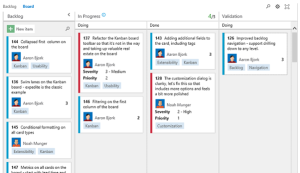
Azure DevOps provides a nice set of options to Project Managers under the “Boards” menu item. Managing tasks through different card types and their states, assignments, Kanban boards, custom dashboards, backlog, custom queries and a lot more. I’m not a PM myself, so I can’t really comment on how it compares to other systems, but it looks quite decent.


Going the extra mile

Having your tasks organized and managed under Boards might be very cool, but that’s only one side of the coin. Having your tasks connected directly to your source code and deployment pipelines, is a great way to build a bridge between PMs and Devs.

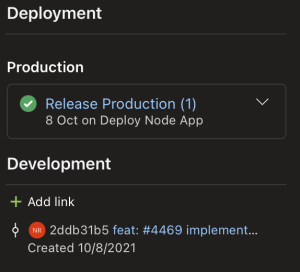
If you already work with Boards you’ve surely noticed the right sidebar with the “Deployment” and “Development” fields. You can manually configure and link commits in the source code to Work Items, sure… but it’s a lot better (and easier) to have this setup automatically.

Enter Conventional Commits

Now, this isn’t really recent news, conventional commits and linking issues to code commits has been around for quite some time (needless to say, if you’re not using it, you really should). The thing with Azure DevOps is that automatic integration only works with internal Repos or GitHub (hence what I mentioned previously about choosing wisely).

  • Using Azure’s Repos
    Just commit your code referencing the Work Item ID inside your commit title or description using the format: #1234.
  • Using GitHub
    First you’ll have to go to Project Settings > GitHub Connections > Connect your GitHub Account. After setting up the connection, everything works the same way as with Repos.


Tip: If you follow the conventional commits guidelines you can automatically change the state of a work item to closed by using “fix: #123”, “fixes: #123” or “fixed: #123” in your commit message.

You can also link build pipelines, but only if you’re using Repos. Just click on the pipeline, go to Settings and you should see a checkbox “Automatically link work items included in this run”.

Advantages


  • Check related code changes directly in the Work Item.
    As you can see in the picture above (the Development section), following these conventions provides direct linking to source code changes related to that Work Item.
  • Check Deployment status directly in the Work Item.
    This is also automatically filled when a Release that contains a commit with the Work Item ID is triggered. To activate this you’ll also need to edit the Release Pipeline > Options > Integrations > check “Report deployment status to Boards” and select the Stage and Deployment Type.

So PMs and Devs now have a way of tracking not only which changes were made regarding a certain task, but also when they were made and when they were released to a certain environment.

More badges!

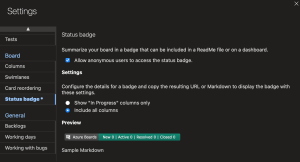
As an extra, if you really love your badges, you can also get a nice Work Items summary out from the Boards badges. Just click on Boards > Boards > top right cog “Configure Team Settings” > Status Badge. You should see a screen like the one below.


If you know any more cool tips and tricks of Azure Devops, feel free to share!

Resources:

Link work items to support traceability – Azure Boards

Azure Boards-GitHub integration – Azure Boards

Related articles

Opinion Articles
RxRepository: Building a testable, reactive, network data repository using RxSwift (part 1)

In this series we will tackle the problem of optimizing network access to fetch data from the network, a common theme of networked applications. While it is certainly trivial to fetch data from a server in any modern framework or OS, optimizing the frequency of access to the network, in order to save bandwidth, battery, user frustration, amongst other things, is complex. More so if you want to reduce code duplication, ensure testability, and leave something useful (and comprehensible) for the next engineer to use.

Opinion Articles
RxRepository: Building a testable, reactive, network data repository using RxSwift (part 2)

In part 1 of this series we started tackling a common problem of networked applications, that of optimizing resource usage and user experience, by optimizing network access. We typically do that by avoiding expensive resource usage, as in avoid making network calls. This avoidance is not more than a mere compromise on the type of resource we decide to spare. Trade a network call for memory space, by caching network responses. It also comes with constraint relaxation, as we do not need the latest version of a particular resource. We, thus, avoid a network call. Nevertheless we want that what we have cached to eventually expire, or to be able to forcefully reload a resource.

Opinion Articles
Stop the Code Wars!

Why we (developers) should stop saying “language X is better than Y”, or worse “language xyz is dead!” To justify my claim, let me start by sharing my personal history in the dev world… divided by programming languages.